
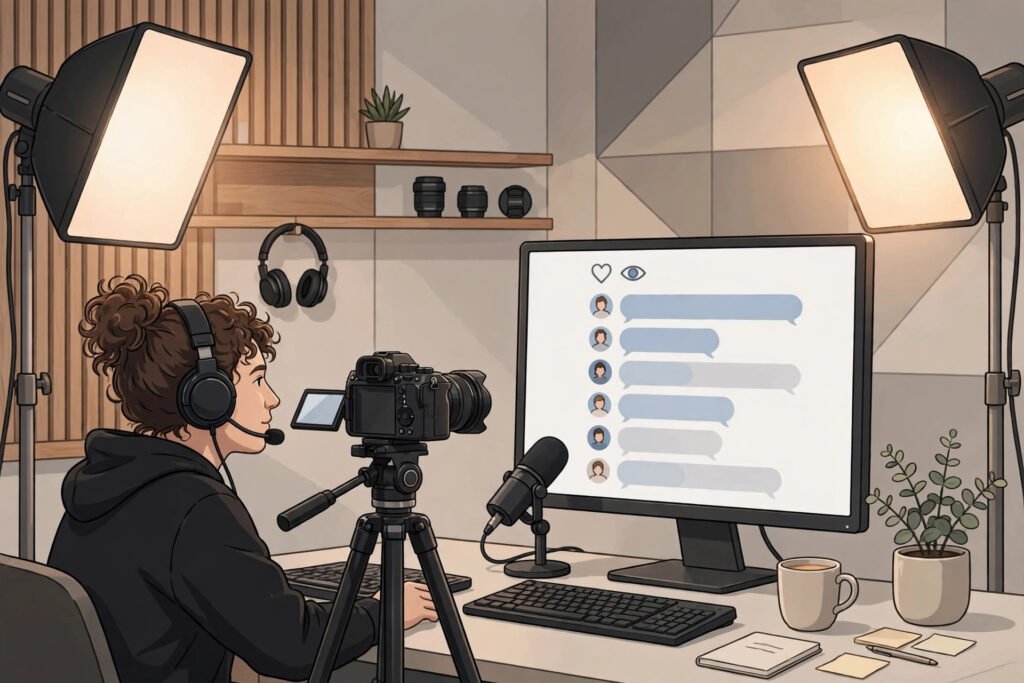
Going live on YouTube feels very different from uploading a recorded video. There is no undo button, viewers are watching in real time, and the chat moves fast. That is also what makes live streaming so powerful: it lets people meet the real you, ask questions, and spend time with your channel in a way a pre-recorded video rarely can.
Many beginners hold off on live streaming because they think they need expensive gear or a large audience. You do not. A clear plan, a decent setup, and a calm approach to talking with viewers are enough to run a stream worth watching. These YouTube live streaming tips beginners can follow cover the setup, the plan, the on-camera habits, and the follow-up work that turns a single stream into lasting channel growth.
Before You Go Live: Set Up the Basics
Good streams are mostly won before you press the Go Live button. Start by making sure live streaming is enabled on your channel and that you know where the controls are. Open YouTube Studio, go to the live section, and take a few minutes to look around before your first real broadcast. Learning the dashboard when nobody is watching is far less stressful than learning it live.
Next, sort out your tools. You can go live straight from your webcam in the browser, which is the simplest option for a first stream. If you want more control over scenes, overlays, and screen sharing, a free encoder program such as OBS Studio is a popular choice. Pick one route for your first stream and stick with it. Switching tools at the last minute only adds stress.
Audio matters more than camera quality. Viewers will forgive a slightly soft picture, but they leave quickly when the sound is echoey, quiet, or full of background noise. Use the best microphone you have, keep it close to your mouth, and do a short test recording to check your levels. Good lighting helps too: face a window or a lamp so the light falls on your face, not on the wall behind you.
Plan Your Stream Like a Real Show
The biggest difference between a stream that holds attention and one that drifts is a plan. You do not need a word-for-word script, but you do need a simple run sheet. A useful structure for a beginner stream looks like this: a short welcome and a clear statement of what the stream is about, two or three main segments or topics, a question-and-answer block, and a closing that tells viewers what happens next.
Write down three to five talking points or questions you can return to whenever the conversation slows. If you are demonstrating something, gather your links, files, and examples before you start so you are not hunting for them on camera. Keep a glass of water nearby, keep your notes within sight, and decide in advance how long the stream will run so you can pace yourself.
Keep Viewers Watching and Talking
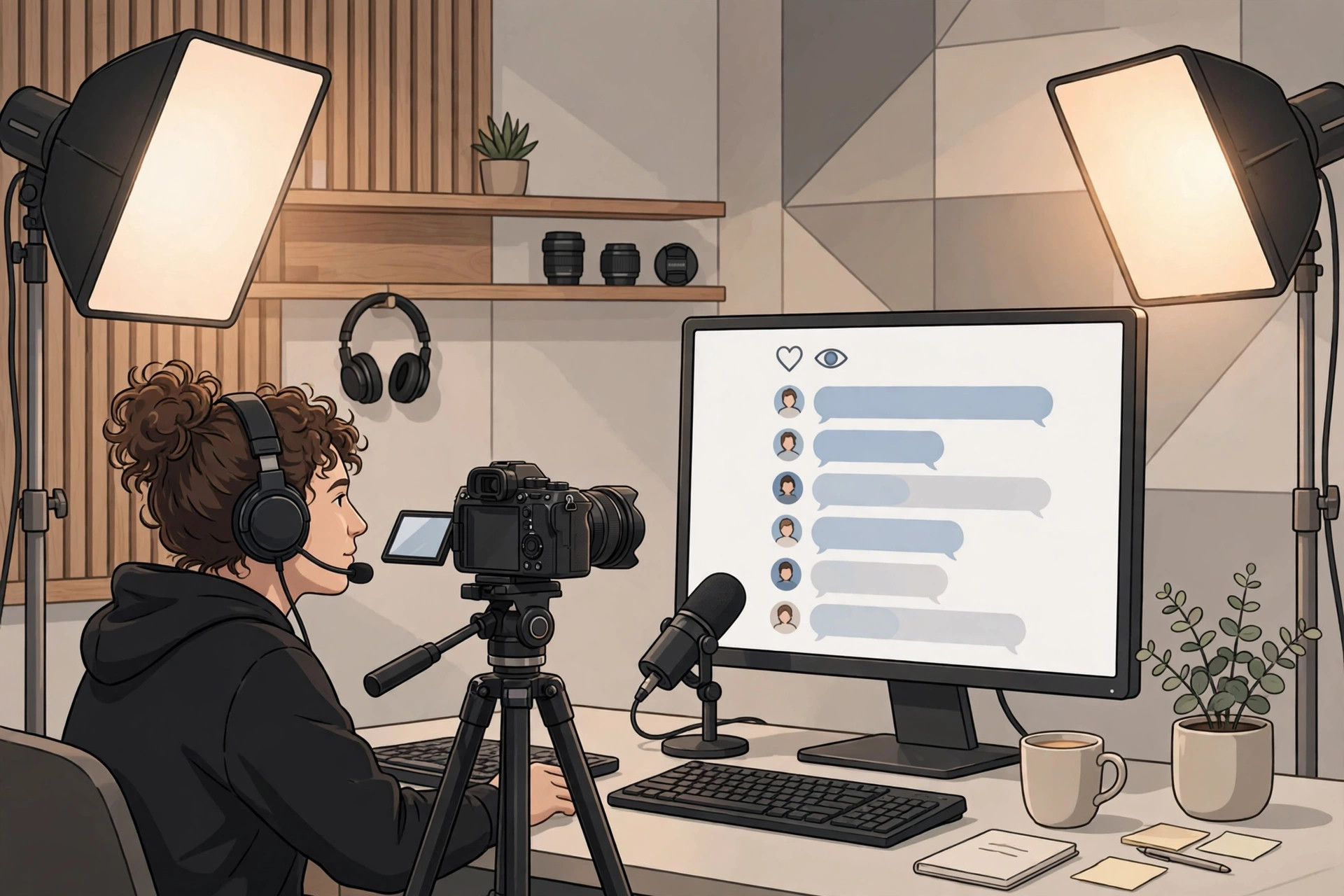
Live streaming rewards conversation. Read the chat out loud, answer questions by name, and respond to comments as they come in. When someone joins late, give a quick one-sentence recap so they can follow along. These small habits make viewers feel included, and included viewers stay longer.
Use the interactive tools YouTube gives you. Pin a comment with the topic or a useful link, run a poll when you want a quick opinion, and use slow mode if the chat moves too fast to follow. If you expect a busy stream, ask a trusted friend to moderate. A moderator can remove spam, answer simple questions, and keep the chat friendly while you focus on the show.
Energy matters more than perfection. Speak a little more slowly and clearly than you would in normal conversation, pause between ideas, and do not be afraid of a short silence while you read a comment. Viewers respond to a host who seems calm and present, not to one who rushes through every sentence.
Handle the Technical Side Without Stress
Before your first real stream, run a private or unlisted test. Check that your microphone is picked up, that your camera framing looks right, and that your internet connection holds up. Close apps you do not need, silence notifications, and keep your charger plugged in if you are streaming from a laptop or phone.
Have a simple backup plan. If the stream drops, stay calm, restart it, and tell viewers what happened when you are back. Most viewers are patient when you explain the problem. Avoid playing music you do not have the rights to use, and keep an eye on anything visible on your screen before you share it, such as private messages or open tabs.
After the Stream: Turn One Live Into More Content
Your work is not finished when the stream ends. The recording stays on your channel as a video, so give it a clear title and a useful description, and add chapters if the stream covered several topics. Reply to comments that arrived after the stream ended, and pin a comment that points viewers to the most useful moment.
Look for short clips inside the stream: a good answer, a funny moment, or a clear tip. These moments can become Shorts or social posts that bring new viewers back to the full replay. Finally, write down what went well and what you want to improve. Each stream becomes easier when you keep a short list of lessons from the last one.
Common Beginner Mistakes to Avoid
- Starting with no plan and hoping the conversation will carry itself.
- Ignoring the chat while talking at the camera.
- Using poor audio and assuming viewers will put up with it.
- Running the stream far longer than the plan, until energy and quality drop.
- Comparing your first stream to a large creator’s hundredth stream.
Frequently Asked Questions
Do I need a lot of subscribers to go live on YouTube?
For desktop streaming, most channels can go live once the feature is enabled on the account. Mobile live streaming has a subscriber requirement, so if you are just starting out, a webcam stream from your computer is the simplest way to begin.
How long should my first live stream be?
A first stream of 30 to 45 minutes is a sensible target. It gives you enough time to warm up, cover your main points, and answer questions without running out of energy. Shorter, focused streams usually feel better than long ones with no direction.
What equipment do I need to start live streaming?
A computer with a webcam, a decent microphone, and a stable internet connection are enough to start. You can improve your setup over time, but you do not need to buy professional gear before your first stream. Clear audio and good lighting will take you further than an expensive camera.
How do I get people to join my live stream?
Tell your audience in advance. Mention the stream in a video or community post, share the date and time, and explain what viewers will get from joining. A clear topic and a specific start time help far more than a vague announcement that you will go live sometime soon.
Can I reuse my live stream after it ends?
Yes. The recording stays on your channel, and you can trim highlights, add chapters, and cut short clips from it. One well-planned stream can supply content for days after the live broadcast is over.
What to Do Next
Your first live stream does not need to be perfect. It needs a plan, decent audio, and a host who talks with the audience instead of at them. Set a date, prepare a short run sheet, and run one test stream this week. You will learn more from that single broadcast than from weeks of reading about it.
If you want more hands-on help growing your channel, explore the YouTube services at Creators Panda, browse more guides in the YouTube articles archive, or look at the full range of services. If you have questions about your channel, you can also contact us and we will point you in the right direction.