
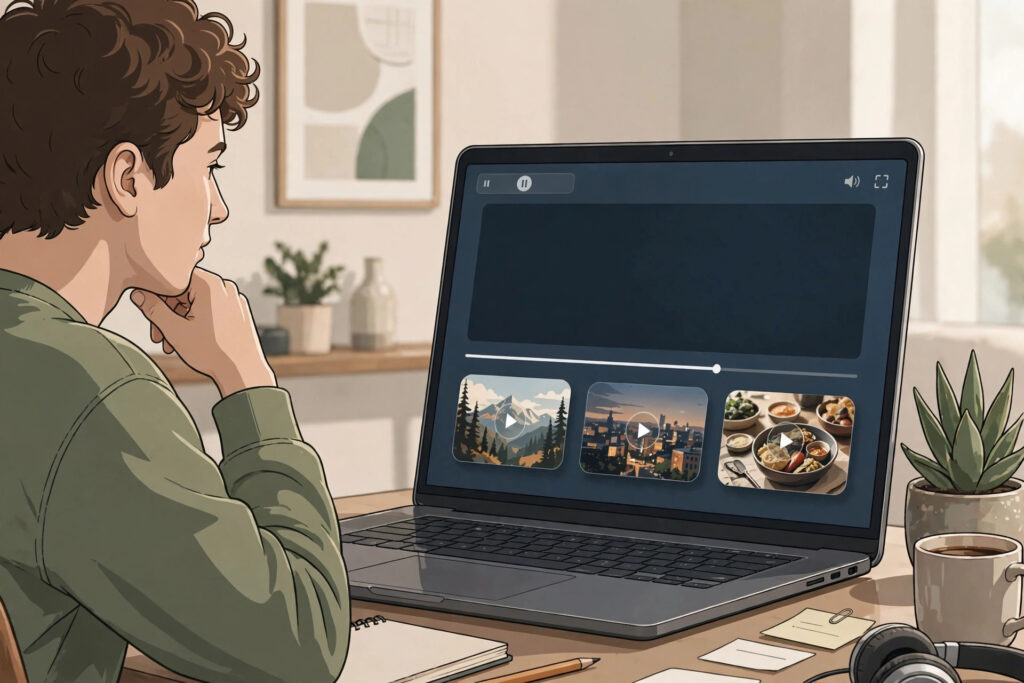
Most viewers do not stop watching because they dislike your channel. They stop because the video ended and nothing invited them to keep going. End screens and cards are the tools that give them a next step, right when they are most ready to take it.
End screens appear in the final seconds of a video and point viewers to another video, a playlist, or a subscribe button. Cards pop up during the video and offer a related link at the moment it is most useful. Used well, the two together turn one view into a second view, and a casual viewer into a returning one.

What End Screens and Cards Actually Do
An end screen shows clickable elements over the closing seconds of your video. You can point viewers to a specific video, a playlist, your channel, or a subscribe prompt. A card is a small notice that slides in during the video. It can point to another video, a playlist, or your channel, and it works best when it connects to something you just mentioned.
Both tools serve the same purpose: they guide the viewer instead of leaving the next step to chance. When a video ends on a blank screen or a hard cut, the viewer has to decide what to do next, and the easiest choice is to leave. A clear next step removes that friction.
Start With the End in Mind
The easiest way to use end screens well is to plan the ending before you film. Leave a calm closing section where end screen elements can sit without covering important visuals. Say, in your own words, what the viewer should watch next and why it is worth their time. Avoid talking over the end screen or cutting away the moment it appears, because viewers need a moment to notice the options and decide.
Keep the background of the closing section simple. A clean background, a steady camera shot, and a clear spoken recommendation make the end screen easy to use. If the final seconds are busy, loud, or crowded, the end screen elements get lost.
How to Set Up an End Screen That Works
In YouTube Studio, open the video and look for the end screen editor. You can start from a template or place each element yourself. A simple, reliable layout is one large video or playlist element, plus a subscribe element. That combination gives the viewer one clear thing to watch and one easy way to stay connected to your channel.
- Point to the most relevant next video, not a random one.
- Use a playlist when several videos belong together as a series.
- Keep the layout uncluttered so each element is easy to tap.
- Give the end screen enough time on screen for viewers to decide.
- Preview the result on different screen sizes before you publish.
Relevance matters more than anything else. If someone just watched a beginner tutorial, the best next step is usually the natural follow-up, not your most popular video on a different topic. When the suggestion feels like a continuation, viewers are far more likely to keep watching.
How to Use Cards Without Distracting Viewers
Cards work best when they feel helpful rather than promotional. Add a card at the moment you mention the thing it links to, such as when you say, “I cover that step in detail in this video.” That timing makes the card feel like a useful footnote instead of an interruption.
- Place cards where the linked video is genuinely relevant.
- Avoid stacking several cards in a short stretch of video.
- Mention the card briefly so viewers know it is there.
- Make sure cards do not cover important visuals, text, or faces.
- Use cards to answer the follow-up question a viewer is likely to have.
One well-timed card usually does more than several scattered ones. If you find yourself adding cards to every minute of a video, step back and keep only the ones that answer a real question or continue the topic.

Pair End Screens and Cards With the Way People Watch
Think about how your own viewing works. You finish a video, and you are deciding whether to keep going. A clear, relevant suggestion wins over a generic one every time. That is why the pairing matters: the card handles the mid-video question, and the end screen handles the what-next decision. Together, they cover the two moments when a viewer is most likely to leave.
Series and playlists make this pairing even stronger. When videos are designed to follow one another, the end screen becomes a natural bridge instead of a guess. If you publish in series, mention the next part at the end of each video and link to it directly.
Common Mistakes to Avoid
- Leaving a video with no end screen at all.
- Pointing to an unrelated video just because it is popular.
- Crowding the end screen with too many elements.
- Adding cards that interrupt key moments or cover the visuals.
- Ending the video so abruptly that viewers never see the end screen.
- Using the same end screen suggestion on every video, even when it does not fit.
A Simple Checklist Before You Publish
- Does the video end with a calm, clear closing section?
- Does the end screen point to the most relevant next video or playlist?
- Is the subscribe element easy to find without crowding the layout?
- Does each card appear at a moment when it is genuinely useful?
- Did you preview the end screen and cards on a small screen?
- Does the spoken ending match what the end screen shows?
Frequently Asked Questions
What is the difference between an end screen and a card?
An end screen appears in the final seconds of a video and offers the next step. A card appears during the video and links to something related to the moment the viewer is watching. End screens close the video; cards support the middle of it.
How many elements should an end screen have?
Fewer is usually better. One clear video or playlist suggestion plus a subscribe prompt is a reliable starting point. A crowded end screen forces the viewer to choose between too many options, and many people will choose none of them.
Should I add cards to every video?
Only when a card adds something useful. If a video naturally refers to another video, a tutorial, or a playlist, a card makes sense. If there is no natural connection, it is better to leave cards out than to add them for their own sake.
Can I change end screens and cards after publishing?
Yes. You can update end screens and cards in YouTube Studio at any time. That makes them a good thing to revisit when you publish a follow-up video that becomes the better next step for an older video.
What to Do Next
Open your most recent video and check the ending: is there a calm closing section, a relevant next step, and a subscribe prompt? Then add one well-timed card where a viewer would naturally want more detail. If you want help turning more views into steady channel growth, explore the YouTube services, browse the YouTube hub for more guides, look at all services, or get in touch through the contact page.